How to retouch product photos
Flawless products, authentic representation
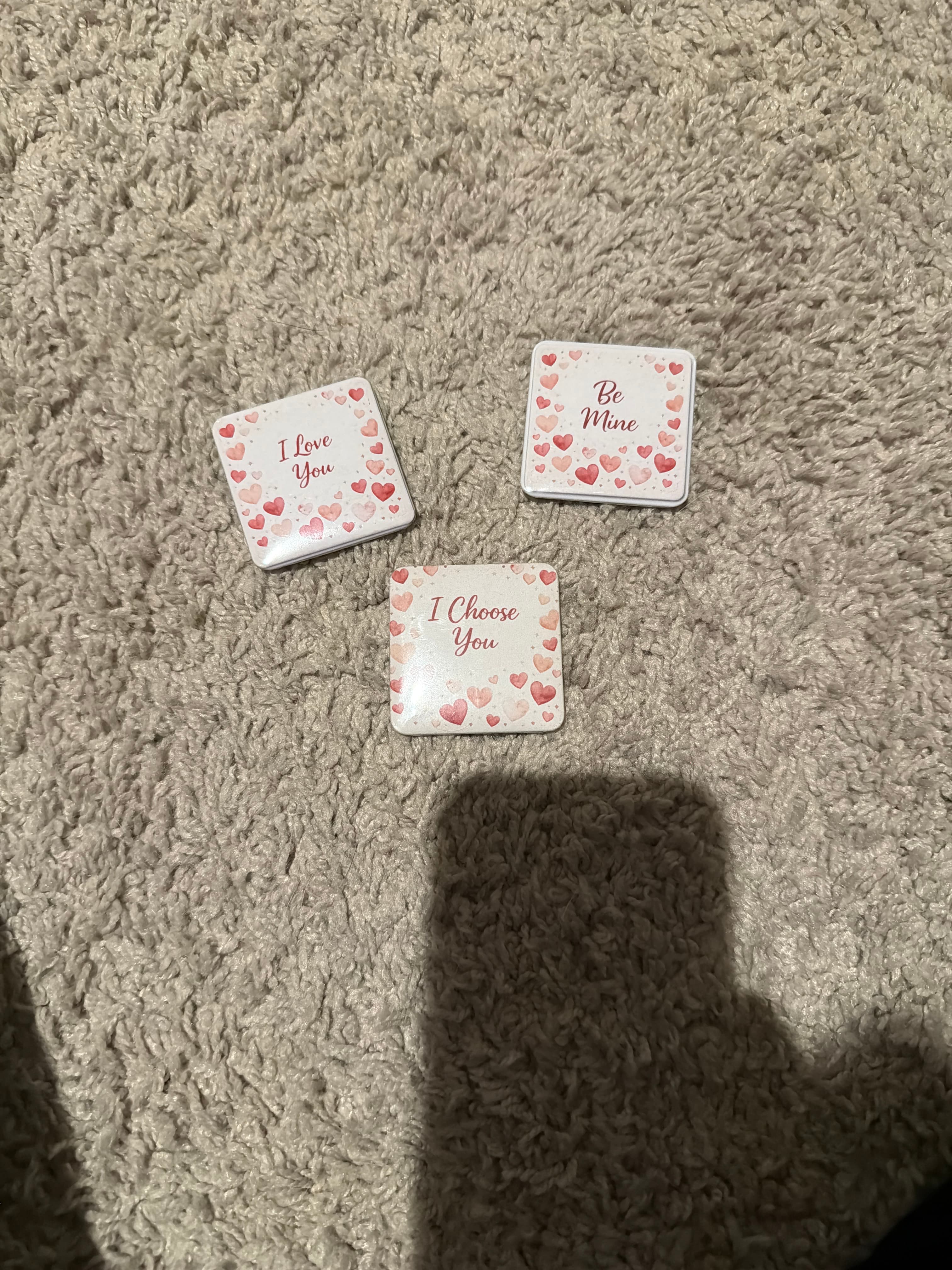
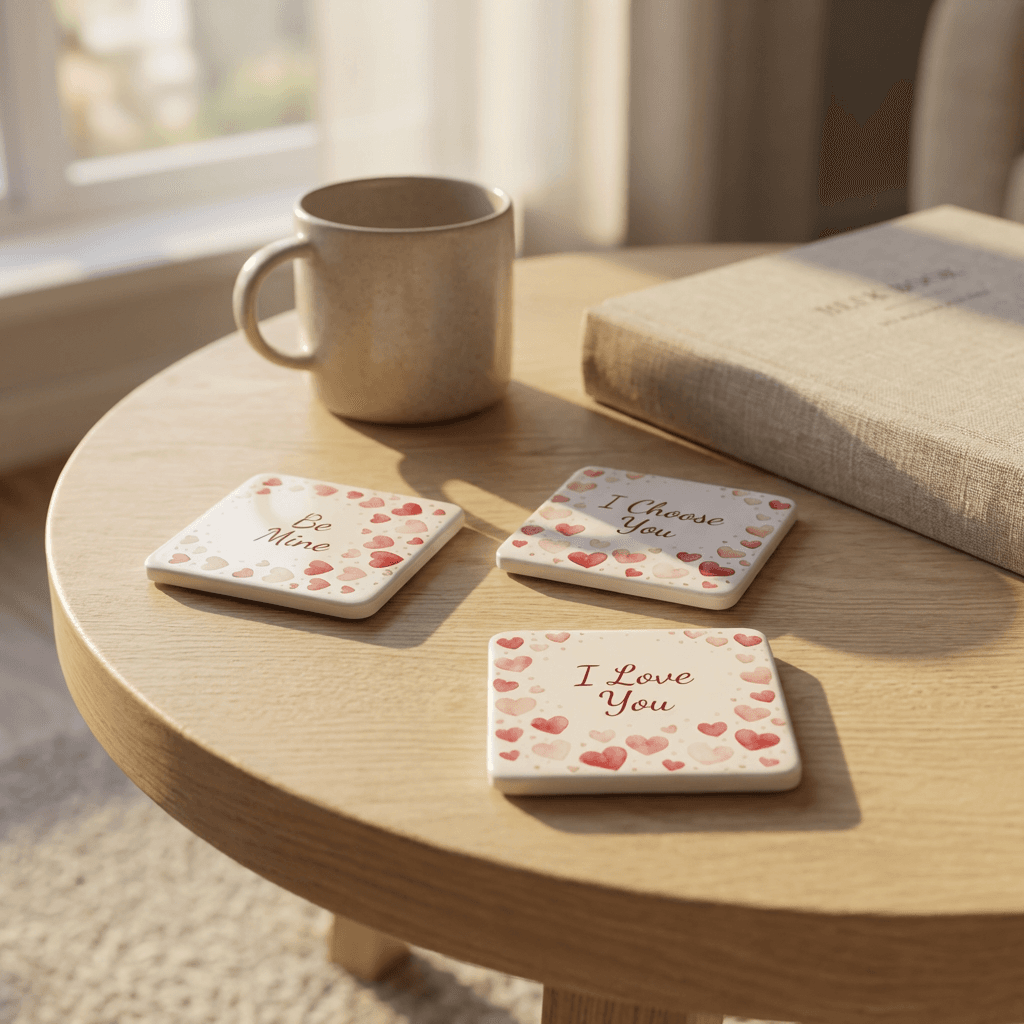
Transform your product photos with AI-powered lifestyle photography.
What you'll need
- Photoshop or similar editing software
- High-resolution source images
- Graphics tablet (recommended)
- Patience and attention to detail
Step-by-step guide
Assess what needs retouching
Zoom in and identify issues: dust, scratches, scuffs, fingerprints, and imperfections. Distinguish between product defects (don't hide) and photography artifacts (remove).
Remove dust and particles
Use the Spot Healing Brush for isolated dust. Clone Stamp works better for larger areas or complex textures where healing creates smearing.
Fix scratches and scuffs
For surface scratches, Clone Stamp at low opacity builds up gradually. Healing Brush can work if surrounding texture is consistent.
Enhance without deceiving
Subtle enhancement is acceptable: brightening dull areas, enhancing texture, or boosting colors slightly. Never hide defects or misrepresent the product.
Final review at print size
View at 100% zoom to check for retouching artifacts. Then view at actual display size to ensure overall quality.
Pro tips
Work on a separate layer so retouching can be adjusted or undone
Use Frequency Separation for texture work on complex surfaces
Match lighting and tone when cloning from different areas
Less is more - over-retouched products look fake and damage trust
Common mistakes to avoid
Over-retouching which makes products look artificial
Hiding genuine product defects that should be disclosed
Creating visible patterns from repetitive cloning
Recommended photo styles
The easier way: AI product photography
While these manual techniques work great, AI can achieve professional results in seconds. Upload your product photo and let AI handle the lighting, backgrounds, and styling automatically.
Try AI product photographyFrequently asked questions
Should I retouch out all imperfections?
Remove photography artifacts (dust, reflections). Keep authentic product characteristics. Never hide defects that customers should know about.
What is the Spot Healing Brush vs Clone Stamp?
Spot Healing automatically blends surrounding pixels. Clone Stamp copies exactly from a sampled area. Healing is faster; Clone offers more control.
How do I avoid repetitive patterns when cloning?
Sample from multiple areas. Change brush size frequently. Clone at low opacity and build up gradually. Rotate the canvas to spot patterns.
Related guides
Related resources
Photography styles
Ready to create professional photos?
Skip the setup and create stunning product photos with AI. Start with 3 free credits.
Start creating free