How to add shadows to product photos
Ground your products with natural shadows
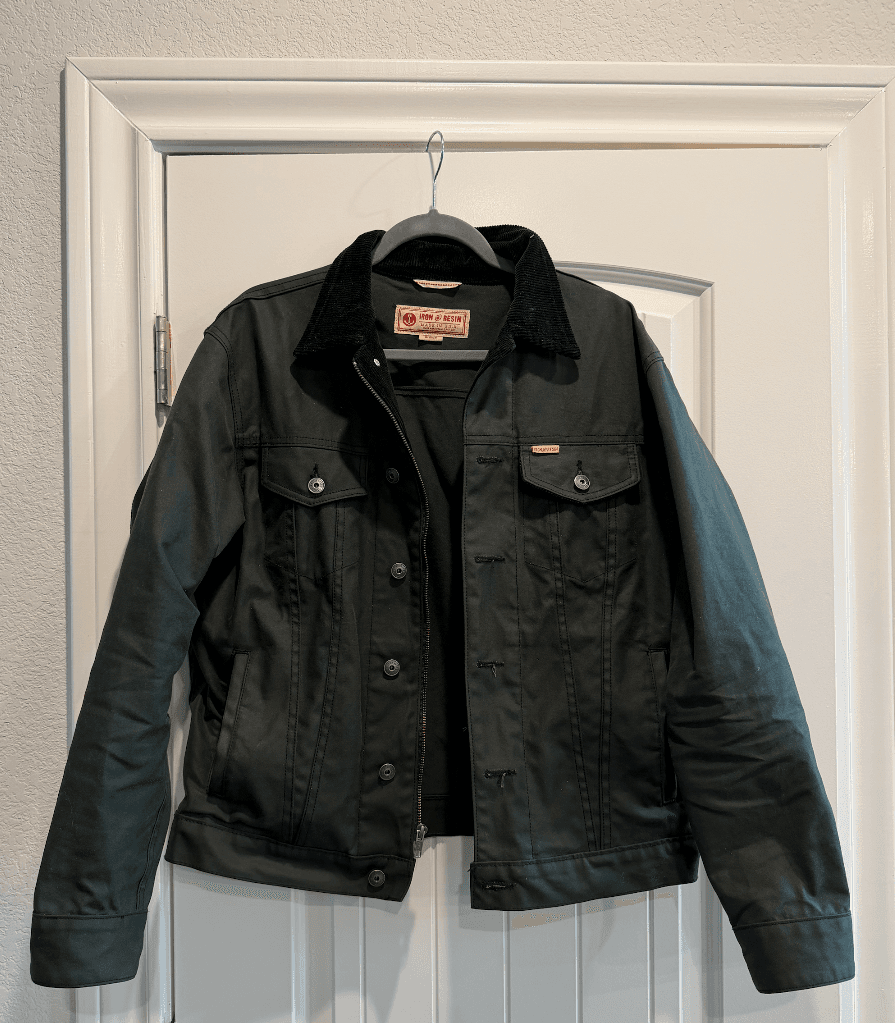
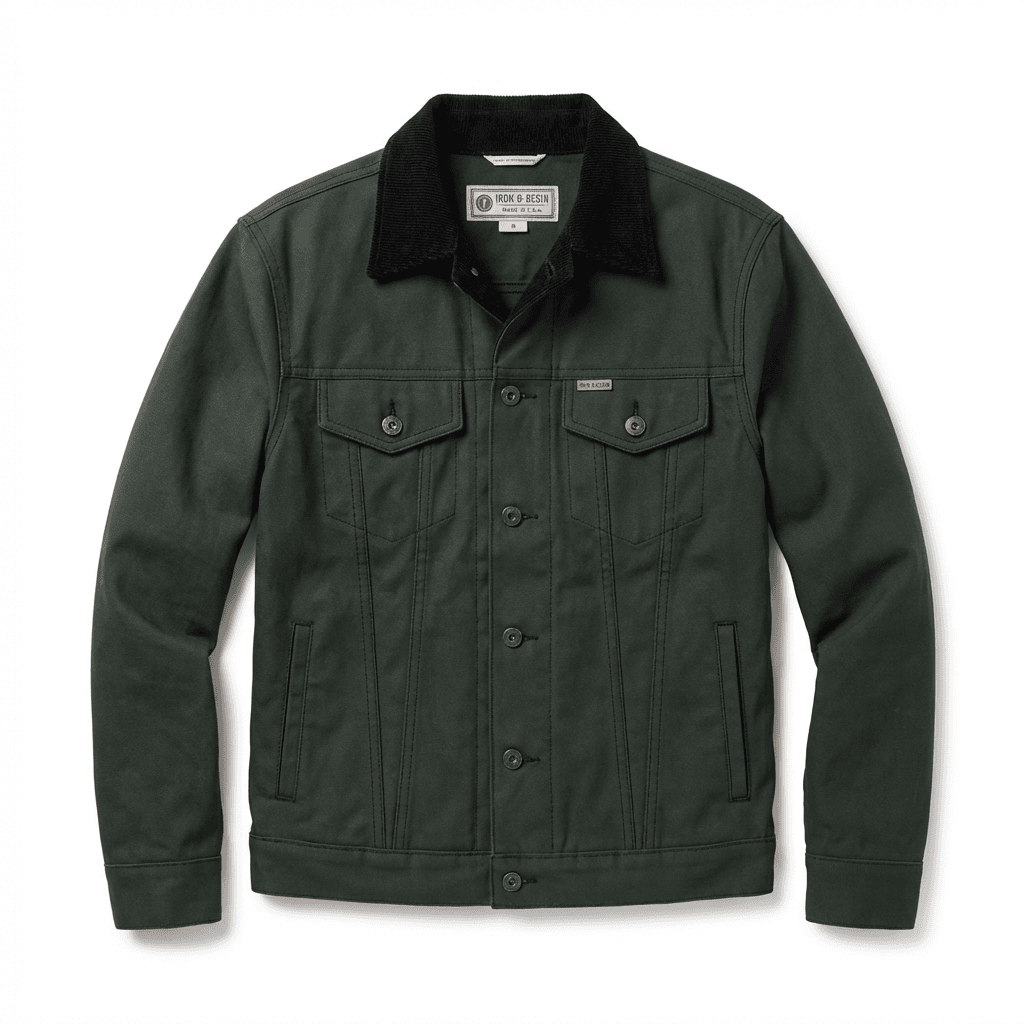
Transform your product photos with AI-powered studio white photography.
What you'll need
- Photo editing software with layer support
- Cutout product image
- Understanding of light direction
Step-by-step guide
Determine light direction
Look at highlights on your product to understand where light is coming from. Shadows should fall opposite to the light source.
Choose your shadow type
Options include: drop shadow (simple, floating effect), natural shadow (contact shadow at the base), or reflection shadow (mirrored image below product).
Create the shadow layer
For natural shadows, duplicate your product layer, fill with black, apply Gaussian blur, and position beneath the product. Reduce opacity to 10-30%.
Transform and position
Use Transform tools to flatten and angle the shadow appropriately. Shadows spread and soften as they get further from the product.
Refine with masks
Use gradient masks to fade shadows as they move away from the product. This creates realistic fall-off.
Pro tips
Contact shadows are darkest and sharpest right where product meets surface
Large, soft shadows suggest diffused light; small, sharp shadows suggest point light
Multiple light sources create multiple shadows
Match your shadow style to your lighting setup for realism
Common mistakes to avoid
Creating shadows that don't match the product's lighting direction
Making shadows too dark or too uniform
Forgetting contact shadows that anchor products to surfaces
Recommended photo styles
The easier way: AI product photography
While these manual techniques work great, AI can achieve professional results in seconds. Upload your product photo and let AI handle the lighting, backgrounds, and styling automatically.
Try AI product photographyFrequently asked questions
What opacity should product shadows be?
Natural shadows typically range from 10-30% opacity. Contact shadows can be darker (30-50%) right at the base, fading to lighter values.
Should I use Photoshop's drop shadow effect?
Layer style drop shadows work for simple cases but lack the control of manually created shadows. For professional results, create shadows manually.
How do I create a reflection shadow?
Duplicate your product, flip vertically, position below, apply gradient mask fading downward, and reduce opacity to 10-20%.
Related guides
Related resources
Photography styles
Ready to create professional photos?
Skip the setup and create stunning product photos with AI. Start with 3 free credits.
Start creating free